Don’t tell them what they’ll hear. Let them hear it.
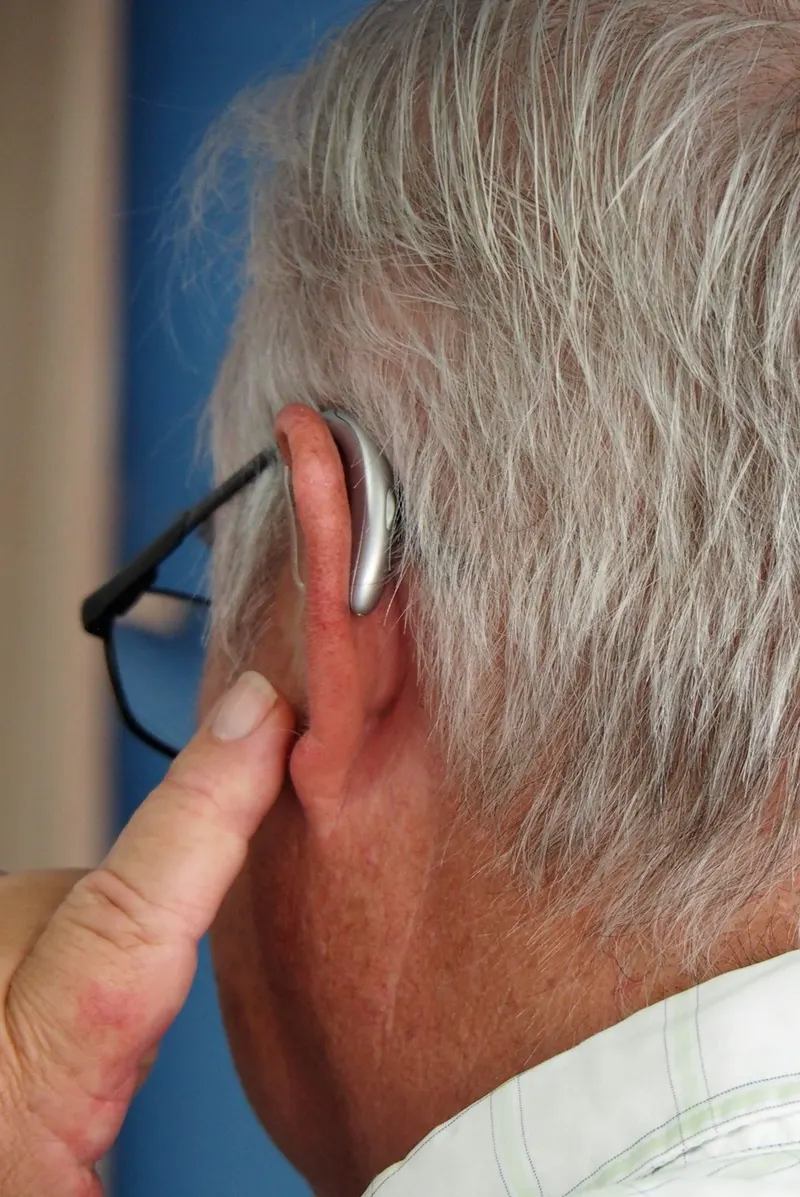
Give your patients a first taste of Auracast™. With one RTX they hear it through their own hearing aids: your voice, the sounds of their day, and how easily they can join. Why Auracast™ matters in hearing care →
1Talk to them directly
All-in-one portable Auracast™ demo kit
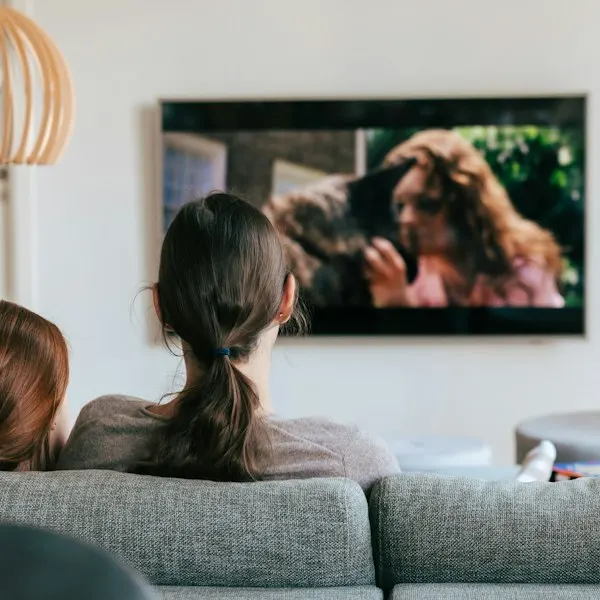
Concert hallRock concertLectureTV at homeCinemaFamily dinnerStationClassicalMatch day
“Can you hear me clearly?”
Hearing aid app
Hold it near the RTX
✓ConnectedYour clinic
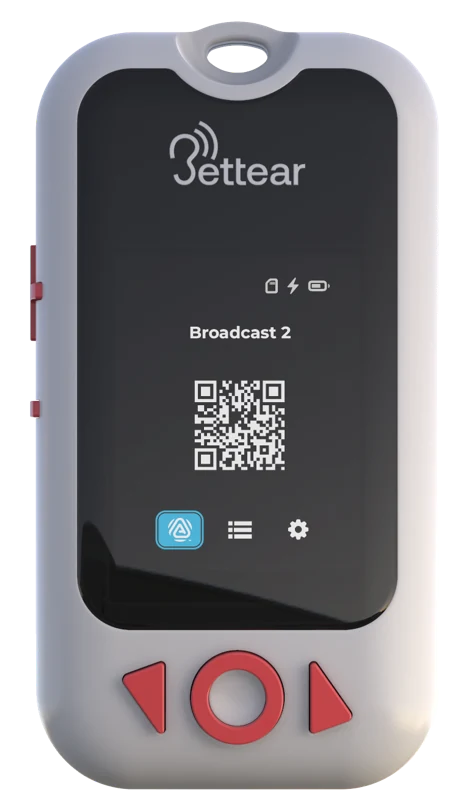
Scan the QR code
Tap to connect · coming soon
Live in your patient’s hearing aids
Setting it up takes four steps
1Choose soundsPick the everyday moments your patient will hear, and the name they’ll see when they connect.
2Prepare the SD cardWe get the audio ready. You put it on the RTX’s card.
3Set up the RTXConnect it with its USB cable. We check it and set everything.
4Start the demoYour patient scans the QR code and listens.
✓What you need
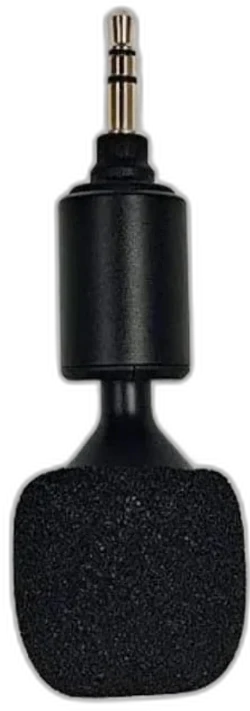
RTX kit for ClinicsThe RTX unit, a microphone and a DUPLEX+ licence
A microSD cardGoes in the RTX and holds the everyday sounds
A computer with Chrome or EdgeTo set up the RTX over its USB cable
Recordings of everyday momentsOptional: a concert, a lecture, a movie scene. Or use our demo set
RTX · Auracast™ demo in your clinic
Set up your Auracast™ demo
Load an RTX with listening scenes, so your patient can experience the world through Auracast™.
1 · Choose sounds
2 · Prepare card
3 · Set up RTX
4 · Done
What your patient will experience
Shown on their phone or hearing aid app when they connect. Your clinic’s name works well.
Use 4 to 32 characters.
Then choose what they’ll hear
Think about what they miss most: the cinema, a grandchild’s concert, the news. Choose up to 5.
Scenes recorded for this demo. Listen to any of them, then continue.
Drop recordings here
or · MP3 · up to 5
Put the audio on the SD card
Take the SD card out of the RTX and put it into this computer.
!When asked where to save, choose the SD card itself
✓The SD cardfor example “NO NAME”, “SDCARD” or “E:”
✗Not a folder on the carddon’t open any folder first
The RTX only looks for the sounds at the top of the card. Select the card, then press Select (or Open).
1 · Download
One zip file with all the audio
2 · Copy the folder
Unzip it, copy the folder onto the card
3 · Card into the RTX
Push it in until it clicks
Setting up more than one RTX? Copy the same folder onto each card.
Sounds on the card? Then continue.
Connect an RTX
Switch the RTX on and plug it into this computer with its USB cable.
Preview mode — not sending real commands to a device
Your demo is ready
Don’t tell them what they’ll hear. Let them hear it.
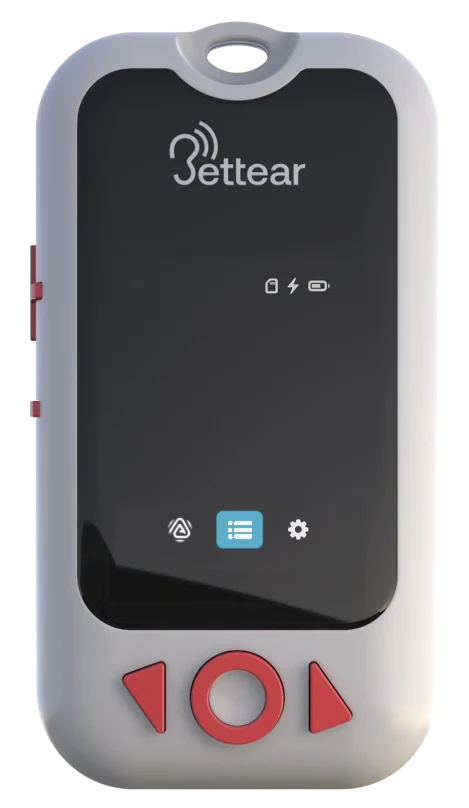
QR code pageYour patient scans it to listen
Playlist pageChoose the scene that plays
On the RTX: press and hold ◀ or ▶ to switch between the QR code and the playlist. In the playlist, press ◀ or ▶ to move through the scenes and ○ to play one.
Your patient will see it as My Clinic.
Device commands
Device command log
Commands sent
Device state (reads back from the device)
Log
Review controls
Not part of the product — for reviewing states without hardware.